Card Centering App Troubleshooting: The Complete Guide to Fixing Alignment & Calibration Errors
Discover how to troubleshoot card centering apps to fix alignment and calibration errors, ensuring precise border symmetry and accurate grading predictions.

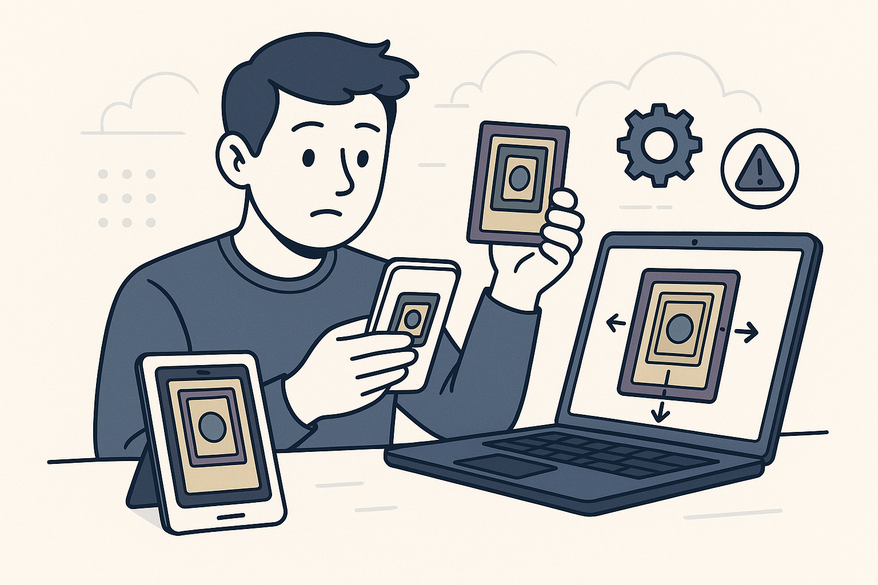
Estimated reading time: 12 minutes
Key Takeaways
- Identify & Categorize: Recognize misalignment, calibration, UI, and device errors that skew border ratios.
- Quick Wins: Perform preliminary checks—settings, compatibility, connectivity, and camera tests—before deep dives.
- Step-by-Step Fixes: Calibrate, reset defaults, clear cache, or reinstall to restore accurate readings.
- Advanced Strategies: Update drivers, test on alternate devices, use built-in diagnostics, and contact support effectively.
- Preventative Best Practices: Maintain photo technique, automatic updates, backups, and leverage built-in help for seamless scans.
Table of Contents
- Introduction
- 1. Understanding Common Issues
- 2. Preliminary Checks & Preparations
- 3. Detailed Troubleshooting Strategies
- 4. Advanced Troubleshooting Tips
- 5. Preventative Measures & Best Practices
- 6. Additional Resources & Support
- Conclusion
Introduction
Card centering app troubleshooting is the process of diagnosing and fixing errors in mobile or web tools that use overlays, grids, or AI-powered algorithms to calculate a trading card’s border alignment ratio (e.g., 60/40 or 55/45). These apps help collectors predict grading outcomes from PSA, BGS, CGC, SGC or TAG before paying submission fees.
Even slight missteps—tilted photos, misaligned grid lines, or sensor glitches—can yield inaccurate centering percentages and costly grading misjudgments. Proper troubleshooting ensures each scan is reliable, saving time and money.
This guide delivers reliable, step-by-step fixes for both common and advanced app issues, so you can achieve precise border symmetry every time. For precise, automated centering analysis, try Card Centering Tool, a web app that measures card alignment down to the millimeter and flags whether your card meets PSA, BGS, or CGC tolerances before you submit for grading.
1. Understanding Common Issues
Troubleshooting begins by recognizing the main error categories that distort border ratios and mislead collectors.
Misalignment & Framing Errors
- Tilted camera angles or unaligned overlays distort percentage readouts by skewing border measurements.
- Overlays/grids that don’t snap to the card’s edges yield false symmetry values.
- Missing rotation or crop controls make it hard to correct framing mistakes on-the-fly.
- User Impact: Scans report wildly varying centering ratios; collectors cannot trust assessments.
Source: CenterGrade: How to Check Card Centering
Calibration & Measurement Inaccuracies
- Inconsistent results from different photos of the same card due to wrong aspect ratio or zoom level.
- Camera perspective distortion (card edges appear non-parallel) alters proportion calculations.
- App fails to recalibrate after software updates or OS-level camera API changes.
- User Impact: Border symmetry readings differ by several percentage points; manual cross-checks become mandatory.
Source: Calibration Video
Display & UI Bugs
- Frozen camera preview or overlays not updating after rescans.
- Unresponsive buttons, hidden menus, or glitching ratio labels.
- Cookie-cutter UI that lacks contrast or clear border markers.
- User Impact: Frustration mounts when basic functions refuse to operate; scans cannot be completed.
Device-Related Faults
- Low-resolution images or poor lighting hinder edge-detection algorithms.
- Camera permission issues or OS compatibility problems block live view or photo import.
- Gyroscope/orientation sensor errors prevent auto-rotation of overlays.
- User Impact: Scans timeout, save failures occur, and results appear nonsensical.
Source: CenterGrade: How to Check Card Centering
2. Preliminary Checks & Preparations
Before diving into complex fixes, perform this quick checklist to eliminate basic misconfigurations:
- Verify App Settings
- Confirm measurement mode: left/right vs top/bottom centering matches your card’s orientation.
- Select the correct card template or size (standard, jumbo, mini).
- Ensure grids and overlays are enabled and visible.
- Confirm System Compatibility
- Check minimum OS version and hardware specs on the App Store or Google Play page.
- Ensure adequate free storage (≥1 GB) and RAM (≥2 GB free) to prevent crashes.
- Test Network Connectivity
- For AI/cloud-based measurement, switch to stable Wi-Fi to avoid upload or processing failures.
- Disable VPN or proxy settings that could block data transfer.
- Update App & Device Software
- Install the latest version of your card centering app; updates often include bug fixes.
- Upgrade device OS to ensure up-to-date camera APIs and security patches.
- Verify Camera & Sensors
- Open the native camera app: check for autofocus issues, blur, or color distortions.
- Rotate between portrait and landscape to test the gyroscope and orientation sensors.
- Ensure the device’s lens is clean and unobstructed.
Reminder: These preliminary checks can resolve the majority of everyday issues before advanced troubleshooting is needed.
3. Detailed Troubleshooting Strategies
3.1 Checking & Adjusting Calibration Settings
- Retake the Photo Correctly
- Use a flat, non-reflective background (e.g., matte black or white).
- Position the camera directly above the card to eliminate perspective distortion.
- Fill the frame with the card, keeping all four borders in view.
- Use Rotation & Fine-Tune Tools
- Apply rotate sliders until all card edges align with horizontal and vertical axes.
- Drag corner handles so the overlay snugly matches each border.
- Recalibrate Templates
- Reset your grid or template based on a known standard card (e.g., a PSA Proof card).
- Follow on-screen instructions to set border distances, then save the new template.
- Manual Cross-Check with Ruler or Pixel Count
- Measure border widths manually (2 mm vs 3 mm approximates a 40/60 split).
- Use your phone’s pixel ruler app to compare with the app’s ratio readout.
3.2 Resetting App Settings to Default
- Locate “Reset to Default” or “Restore Settings” in the app’s Preferences menu.
- Confirm the reset and allow the app to relaunch with factory settings.
- Re-select only essential options (language, units, card type).
- Re-test using a standard reference card to verify stable readings.
Why Reset Helps: Custom templates and offsets can accumulate small errors over time. A fresh slate often clears hidden misconfigurations.
3.3 Clearing Cache or Reinstalling the App
- On Android:
- Settings → Apps → Card Centering App → Storage → Clear cache/data.
- On iOS:
- Offload the app via Settings → General → iPhone Storage → Card Centering App → Offload App.
- Alternatively, delete and reinstall from the App Store.
- Reboot your device after clearing or reinstalling.
- Launch the app and test with a fresh high-quality image.
3.4 Common Errors & Solutions
Here’s a quick reference:
| Problem Description | Likely Cause & Fix |
|---|---|
| Widely varying readings per photo | Tilted shots or inconsistent lighting – Retake photos straight-on under uniform light; align overlays manually. |
| App shows implausible ratios (e.g., 90/10) | Misaligned grid or incorrect template size – Reset to default settings; reselect the correct card template. |
| Black or frozen camera preview | Camera permissions denied or OS conflict – Enable camera access in Settings; reinstall the app. |
| App crashes on high-res images | Low memory or outdated app version – Close other apps; update to latest app release; reduce image resolution if possible. |
| Overlays missing/not updating | Corrupted config or UI glitch – Clear cache; reset settings; reinstall app if problem persists. |
3.5 Visual Aids
- Include an annotated screenshot of a correctly aligned card with grid overlay (replace with your own capture).
- Show a tilted card illustrating perspective distortion and false border ratios.
- Add a simple diagram comparing left/right vs top/bottom centering (60/40 vs 55/45).
- Caption each visual with “card centering app troubleshooting” to reinforce context.
4. Advanced Troubleshooting Tips
4.1 Hardware & Device Conflicts
- Test on an Alternate Device
- Install the app on a friend’s phone or secondary tablet to see if the issue follows your account or stays device-specific.
- If other camera apps behave poorly, suspect hardware lens or sensor damage.
4.2 Driver & OS-Level Issues
- Update Device OS & Drivers
- Install the latest official firmware or security patch available.
- On Android, boot into Safe Mode to disable third-party apps and test stability.
- Roll Back Updates
- If a recent OS update created the problem, consider rolling back (Android) or wait for a patch.
4.3 In-App Diagnostics & Debug Tools
- Use Built-In Test Images
- Some apps include demo cards. Run test scans and compare with expected border ratios provided in-app.
- Edge-Detection Logs
- Access debug view (if available) to see live edge detection lines and pixel counts.
4.4 When & How to Contact Technical Support
- Gather Key Information:
- Device model, OS version, app version.
- Detailed reproduction steps and annotated screenshots of the issue.
- Send to Official Support Email
- Use the developer contact listed on the App Store or Google Play page.
5. Preventative Measures & Best Practices
- Photo Technique
- Always use a flat, non-reflective surface and bright indirect lighting.
- Stabilize your device with a stand or tripod to avoid blur.
- Enable Automatic Updates
- Turn on auto-updates for both the card centering app and your OS to get the latest fixes.
- Back Up Settings & Saved Scans
- Export templates or sync to the cloud if your app provides backup functionality.
- Periodically verify that saved images and preferences are intact.
- Consult Built-In Help
- Read the app’s quick-start guides and FAQs for alignment tips and ideal photo setups.
6. Additional Resources & Support
- Official Support Channels
- Card Centering Calculator support email and FAQs on App Store pages:
App Store
Google Play
- Card Centering Calculator support email and FAQs on App Store pages:
- Community Discussions & Video Tutorials
- YouTube how-to guides on centering photos and using overlays:
Video Tutorial - Card-collecting forums (e.g., Reddit r/baseballcards) share user tips on achieving perfect border symmetry.
- YouTube how-to guides on centering photos and using overlays:
- Educational Content on Centering Concepts
- In-depth articles on measuring border ratios and grading criteria:
CenterGrade Guide
- In-depth articles on measuring border ratios and grading criteria:
Conclusion
This complete guide has walked you through:
- Basic checks (settings, compatibility, updates)
- Photo technique and calibration best practices
- Resets, cache clears, and reinstall steps
- Advanced device-level diagnostics and support pathways
By isolating one variable at a time—lighting, alignment, app version, or device—you can pinpoint issues faster and restore accurate border ratio readings.
Call to Action: Share your own troubleshooting tips or before/after scan results in the comments below. Your experiences help fellow collectors achieve perfect card centering every time.
FAQ
- How do I fix tilted scans?
Retake photos straight-on under uniform light, use rotation tools to align overlays, and ensure the camera is parallel to the card.
- Why does the app show different ratios for the same card?
Inconsistent lighting, camera angle, or template settings. Recalibrate templates and retake images with a stable setup.
- What if my camera preview freezes?
Check camera permissions in your OS settings, clear app cache, and restart or reinstall the app.
- When should I contact support?
After exhausting on-device fixes, gather device/app info, reproduce steps, and send detailed logs or screenshots to the developer’s support email.
Free to start
Try the Midpoint app
Grade any card from a photo, see its raw and PSA 10 value, and track what your collection is worth — free.
Get it on iPhoneGet it on Android