The Ultimate Guide to Digital Editing for Trading Card Presentation
Master digital editing for trading card presentation with techniques to enhance visual appeal, brand consistency, and readability, ensuring captivating collector designs.

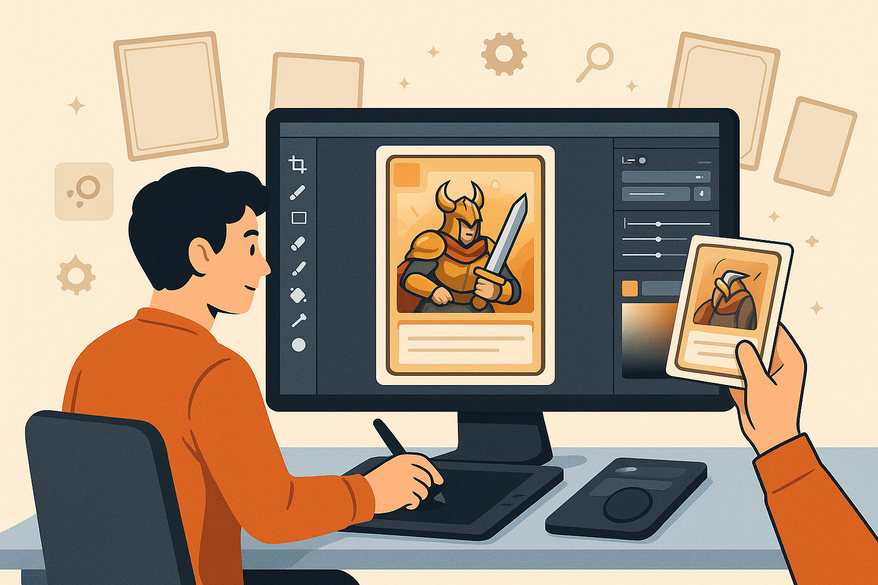
Estimated reading time: 10 minutes
Key Takeaways
- Digital editing refines art, layout, and text for professional trading cards.
- Core tasks include cropping, color correction, image enhancement, and layout design.
- Advanced techniques cover layer management, blending modes, and non-destructive editing.
- Choose the right tools—Photoshop, Illustrator, GIMP, Affinity, or dedicated card generators—for your workflow.
- Follow best practices for print (300 DPI, CMYK, bleed) and digital (RGB, sharpening) outputs.
Table of Contents
- Section 1: Understanding the Basics of Digital Editing
- Section 2: Essential Techniques
- Section 3: Tools and Software Recommendations
- Section 4: Applying Techniques in Practice
- Section 5: Best Practices and Tips
- Conclusion
- Call-to-Action
- FAQ
Section 1: Understanding the Basics of Digital Editing for Trading Card Presentation
What is digital editing in this context?
Digital editing is the use of computer software to manipulate and refine images, layouts, and text—adjusting color, contrast, composition, and effects to achieve a desired look. It involves photo manipulation, graphic design, and typesetting. Source: Introduction to Digital Art OER Textbook
Core tasks in trading card editing:
- Cleaning and enhancing artwork or photos.
- Designing frames, borders, icons, and backgrounds.
- Placing and styling text for titles, stats, and rules.
- Exporting print-ready or digital-ready files at the correct size and resolution.
Overview of tool categories:
- Raster editors: Adobe Photoshop, GIMP.
- Vector/layout tools: Adobe Illustrator, Affinity Designer.
- Dedicated generators: Magic Set Editor, Card Conjurer, Forge of Cards.
- Productivity tools: Word/PowerPoint.
Key objectives of digital editing:
- Enhancing visual appeal with crisp images and balanced colors.
- Ensuring brand consistency through uniform frames, logos, and palettes.
- Engaging the audience via thematic design and rarity effects.
Section 2: Essential Digital Editing Techniques
A. Basic Techniques
- Cropping & sizing
Set canvas to 2.5"×3.5" at 300 DPI for print; maintain aspect ratio without distortion. - Color correction
Adjust brightness/contrast, fix white balance, tweak hue/saturation. - Image enhancement
Apply sharpening, noise reduction, spot-healing, and clone tools. - Basic layout
Place frame, art window, title bar, text box, and icons in consistent spots. Source: creating a trading card in Adobe Photoshop
B. Advanced Techniques
- Layer management
Separate layers for background, artwork, text, icons, and effects; use folders. - Blending modes & effects
Use Overlay/Soft Light, Outer Glow, Drop Shadow, gradient maps for special finishes. - Masks & non-destructive editing
Employ layer masks and adjustment layers to preserve originals.
C. Design Elements to Highlight Details
- Textures: metal, paper, energy patterns.
- Gradients: radial behind icons, linear behind titles.
- Depth: drop shadows on frames/text boxes; inner shadows for legibility.
Section 3: Tools and Software Recommendations
For advanced workflows combining photo editing and layout, see Mastering Card Photo Editing for Grading
Compare key software options
- Adobe Photoshop: Industry standard, powerful layers/effects; subscription cost.
- Adobe Illustrator: Scalable templates; less pixel control.
- GIMP: Free, core tools; fewer advanced effects.
- Affinity Photo/Designer: One-time purchase; smaller tutorial ecosystem.
- Magic Set Editor/Card Conjurer/Forge of Cards: Quick layouts; limited custom effects.
- Word/PowerPoint: Familiar; not for serious image editing.
Workflow suggestions
- Use bleed-enabled templates with safe zones.
- Employ artboards/pages for batch designs.
- Name files clearly (e.g., SetCode_CardName_v01.psd).
- Keep master files for design and flattened files for print/web.
Section 4: Application of Techniques in Practice
Creating striking layouts & compositions
- Establish visual hierarchy: artwork → title → stats/rules.
- Use grids and guides for alignment.
- Reserve complex effects for special-edition cards.
Integrating text, graphics & effects
- Limit fonts to 2–3 families; use variants for emphasis.
- Ensure high contrast; back text with solid or semi-transparent shapes.
- Apply subtle glows/shadows to text boxes for readability.
Before-and-after case studies
- Raw art vs. final card: boosted saturation, textured text background, title drop shadow. Source: YouTube tutorial
- Prototype vs. print-ready: added bleed/safe-zone template, uniform margins, balanced colors. Sources: YouTube tutorial, YouTube tutorial
Section 5: Best Practices and Tips
Optimizing for print vs. digital
- Print: 300 DPI, CMYK, include 0.125" bleed, keep safe zones.
- Digital: RGB, export 800–1200 px previews, apply slight sharpening.
Common pitfalls to avoid
- Text too small or too close to edges.
- Overusing effects, cluttering design.
- Ignoring safe zones and bleed.
- Mixing styles mid-set.
- Upscaling low-resolution art.
Maintaining file quality & consistency
- Retain layered master files (PSD, XCF, AFPHOTO).
- Use paragraph and character styles.
- Share a style guide with color codes, fonts, icon usage.
- Back up files to cloud or external drives.
Conclusion
Digital editing transforms raw assets into polished, brand-consistent trading cards that captivate collectors. By mastering core steps—cropping, color correction, layout—and advancing to layer management, blending modes, and strategic effects, you ensure each card shines. The right tools and a repeatable workflow make production efficient and professional.
Call-to-Action
- Apply the workflow: Crop one card to 2.5"×3.5" at 300 DPI, enhance colors, add frames, refine text, and export for print and web.
- Experiment with tools: Try a dedicated card generator and a full image editor; choose what fits your needs.
- Share your results: Post before-and-after images for feedback and refine over time.
Start your journey in digital editing for trading card presentation today and watch your designs come to life!
FAQ
- What’s the best tool for beginners?
GIMP or PowerPoint offer intuitive interfaces without subscription fees.
- How do I set up bleed and safe zones for print?
Include a 0.125" bleed around a 2.5"×3.5" canvas and keep vital elements at least 0.125" from the edges.
- How can I maintain consistency across a card set?
Use master template files, paragraph styles, and shared color palettes to ensure uniform design.
Free to start
Try the Midpoint app
Grade any card from a photo, see its raw and PSA 10 value, and track what your collection is worth — free.
Get it on iPhoneGet it on Android