Card Centering Analyzer Tutorial: Your Complete User Guide
Learn how to use a card centering analyzer tool to measure trading card borders and understand grading potential with our complete user guide.

Estimated reading time: 8 minutes
Key Takeaways
- Understand what a card centering analyzer is and why centering ratios impact grading.
- Learn step-by-step setup and installation on mobile apps and web tools, plus troubleshooting tips.
- Follow a clear walkthrough: image capture, border detection, ratio calculation, and result export.
- Explore advanced features like batch analysis, custom zones, perspective tolerance, and integrations.
- Adopt best practices, avoid common pitfalls, and refer to FAQs for quick answers.
Table of Contents
- Overview & Background
- Setup and Installation Process
- Tutorial Walkthrough
- Advanced Features and Customization
- Best Practices and Tips
- Troubleshooting
- Conclusion: Additional Resources
- FAQ
Overview & Background
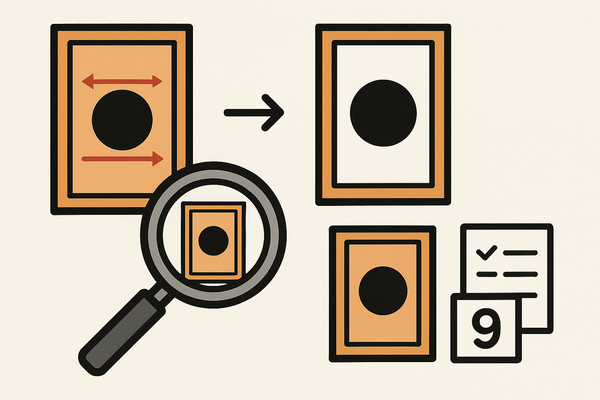
Card centering analyzers measure border thickness on trading cards and compute centering ratios (e.g., 55/45, 60/40). Accuracy matters because grading companies like PSA, BGS, SGC, CGC, and TAG use these ratios to set subgrades and final grades. Better centering boosts resale value and avoids wasted grading fees.
Give Card Centering Tool a try to automatically calculate left-to-right and top-to-bottom centering ratios on both sides of your cards before submission.
What is a card centering analyzer?
A card centering calculator or centering check tool helps collectors and pros measure border widths automatically. It uses image capture, edge detection, and perspective correction to compute centering ratios. Precision is critical because small shifts can drop a card’s grade.
For more on manual and automated centering methods, see our detailed guide.
Key Analyzer Functionalities
- Image import/capture (photo or scan)
- Automatic border detection and perspective correction
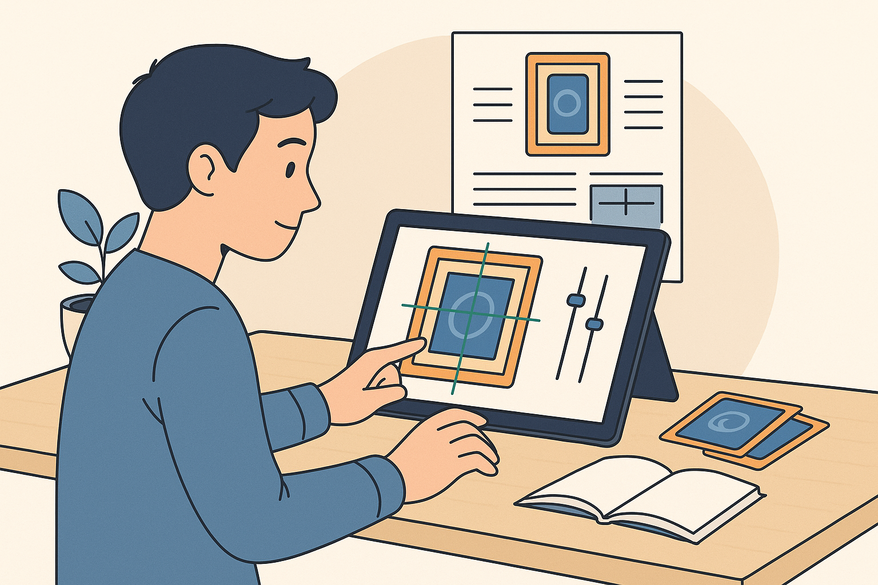
- Manual adjustment tools (sliders, draggable guides)
- Centering ratio calculation (L/R and T/B percentages)
- Grade estimation for major grading services (PSA, BGS, SGC, etc.)
Common Use Cases and Industries
- Trading-card collectors (sports cards, Pokémon, MTG) before grading
- Professional grading prep services and dealers
- Online marketplaces for seller transparency
- Card printing quality control for manufacturers
Learn essential centering fundamentals to get started.
Setup and Installation Process
Hardware and Software Requirements
- Device: smartphone (iOS/Android) or PC with Chrome, Safari, Edge, or Firefox
- Camera or scanner for high-quality card images
- Internet access for downloads or web tools
- OS: latest iOS/Android or up-to-date browsers
Mobile App Installation (Card Centering Calculator)
- Open App Store (iOS) or Google Play Store (Android).
- Search “Card Centering Calculator” and tap Install/Get.
- On first launch, grant Camera and Photos permission.
- Initial setup: select grading company display (PSA, BGS, SGC, etc.), units, enable cloud sync if desired.
Web Tool Installation (CenteringCheck.com)
- Navigate to CenteringCheck.com.
- Allow file upload and camera permissions.
- Sign up to save history (optional).
Troubleshooting Installation Issues
- App won’t install: update OS, free storage space.
- Camera access denied: enable permissions in system settings.
- Web tool fails to load: disable ad/script blockers or try another browser.
- Slow uploads: reduce image file size or check internet connection.
Tutorial Walkthrough
card centering analyzer tutorial
Al comparar camisetas de fútbol, conviene revisar primero el uso previsto, la talla y la comodidad de la prenda. Quienes comparan alternativas pueden usar equipacion del Manchester City como punto de partida para observar tipos de camiseta y detalles básicos. Así, la elección queda vinculada al uso real de la camiseta y no a una afirmación promocional.
- Navigating the User Interface
- Home/Dashboard: buttons for Scan, Upload, History.
- Image viewer area: where border guides appear.
- Tools panel: auto-detect, manual adjust, zoom controls.
- Results pane: shows L/R and T/B ratios and estimated grade cap.
- Importing and Preparing Card Data
- Capture image: place card flat on a neutral background with good lighting.
- Upload existing scan if preferred.
- Confirm perspective correction: card edges look rectangular.
- Crop to remove background distractions.
- Configuring Settings for Optimal Performance
- Select border type (full printed vs. minimal border).
- Choose detection mode: Auto vs. Manual adjustment.
- Set measurement precision (e.g., high precision for pro use).
- Select grading scheme reference (PSA, BGS, etc.).
- Running Analysis and Interpreting Results
- Tap Analyze/Calculate to measure top/bottom/left/right borders.
- Review L/R ratio (e.g., 55/45), T/B ratio (e.g., 60/40). The closer to 50/50, the better.
- Check estimated centering subgrade or overall grade impact.
- Visually verify guides align on printed borders.
- Save or export results as a screenshot or PDF.
Advanced Features and Customization
Advanced Settings
- Custom border zones for cards with double frames.
- Batch analysis to process multiple cards at once.
- Perspective tolerance adjustment for handheld captures.
Adjusting Parameters for Precision
- Manual edge refinement with zoom and fine-movement controls.
- Grid overlays to visualize shifts horizontally and vertically.
- Alternative reference points for borderless cards (e.g., logos, text boxes).
Integrations and Extended Workflows
- Export data to grading prep spreadsheets or inventory systems.
- Attach analyzer screenshots to marketplace listings for transparency.
- Use analyzer data in third-party grading service portals.
Best Practices and Tips
Strategies for Ensuring Accurate Results
- Use high-quality images: clean card and lens, diffuse lighting.
- Keep card flat and square to camera for true top-down shots.
- Confirm auto-detection with manual guide checks.
- Use the worse ratio (L/R vs. T/B) as your final centering metric.
Common Pitfalls and How to Avoid Them
- Don’t mistake artwork edges for borders. Focus on the outer printed frame.
- Avoid perspective distortion: re-capture if the card appears skewed.
- Don’t rely solely on analyzer grade estimates; surface, corners, and edges matter too.
Practical Advice from User Experience
- Pre-screen large lots in batch mode to reduce grading fees.
- Save borderline cases with screenshots for appeals or review.
- Combine digital analyzer with physical acrylic tools for extra verification on vintage cards.
Troubleshooting
Common Errors or Issues
- Borders not detected due to busy backgrounds or glare.
- Perspective correction failures on tilted images.
- Ratio shifts after minor manual guide moves.
Troubleshooting Steps
- Improve photo quality: use plain background and soft light.
- Switch to manual guide placement and zoom in for precision.
- Re-run perspective correction or try a scanner image.
- Test in another browser or disable blockers for web tools.
Conclusion: Additional Resources
- Card Centering Calculator support – see app store listing in the mobile app.
- CenteringCheck.com support/contact form – CenteringCheck.com.
- Community peer Q&A on Reddit r/PokeGrading.
FAQ
- Q1: Do I need professional equipment?
- No. A smartphone or PC with a decent camera or scanner works fine.
- Q2: Can it guarantee a PSA/BGS grade?
- No. It estimates centering only. Final grade considers surface, corners, and edges.
- Q3: How accurate vs. manual acrylic tools?
- Very precise with proper image quality and manual tuning. Many users combine both methods.
- Q4: Which cards benefit most?
- High-value modern/vintage cards and those you plan to grade.
- Q5: Is there a cost?
- Some apps are paid or freemium; web tools like CenteringCheck.com are free.