Card Centering Analyzer Tutorial: Step-by-Step Guide to Accurate Grading Prep
Learn how to use a card centering analyzer to accurately grade trading cards. This tutorial covers setup, usage, and advanced tips for best results.

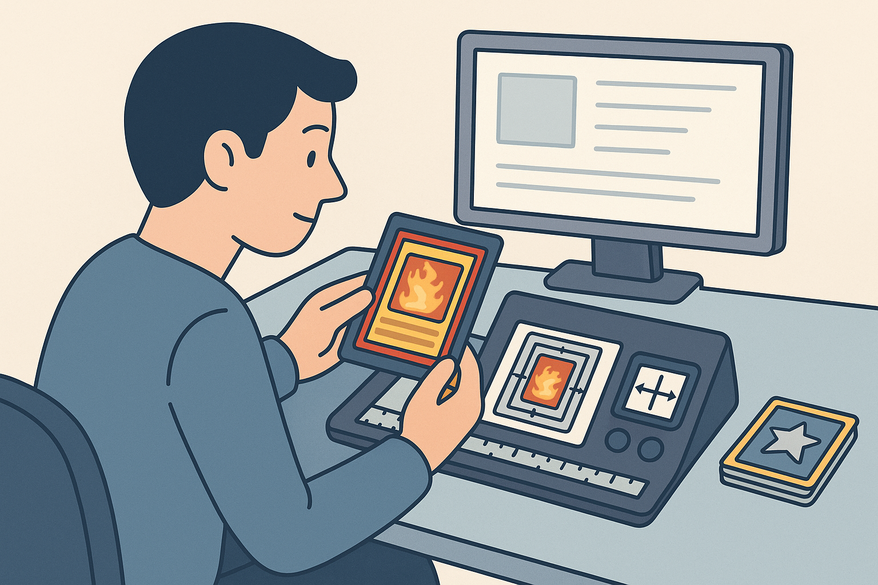
Estimated reading time: 8 minutes
Key Takeaways
- Precision Matters: Achieve sub-millimeter accuracy to meet grading thresholds.
- Streamlined Workflow: From setup to export, follow a clear, step-by-step process.
- Troubleshooting Tips: Overcome AI misdetections, glare, and lighting issues.
- Advanced Features: Compare PSA, BGS, CGC tolerances and use multi-factor grading.
- Cost Savings: Submit only well-centered cards to avoid unnecessary grading fees.
Table of Contents
- Overview of the Card Centering Analyzer
- Setting Up Your Environment
- Step-by-Step Guide to Using the Analyzer
- Troubleshooting & Common Issues
- Advanced Features & Best Practices
- Conclusion & Additional Resources
- FAQ
Overview of the Card Centering Analyzer
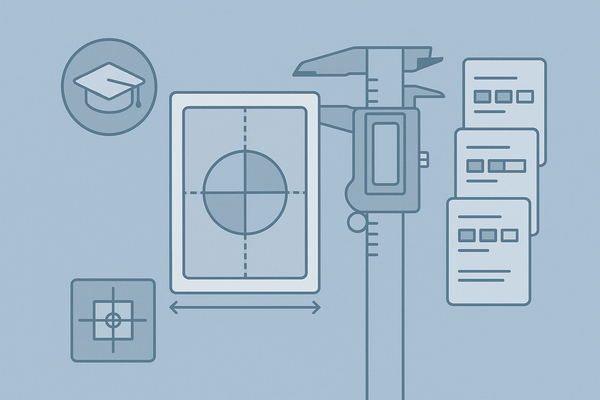
Card centering measures the evenness of the printed area within a trading card’s white borders. Proper centering can be the difference between a Gem Mint and a lower grade, as leading grading companies—PSA, BGS, and CGC—apply strict centering tolerances.
Core analyzer functions include:
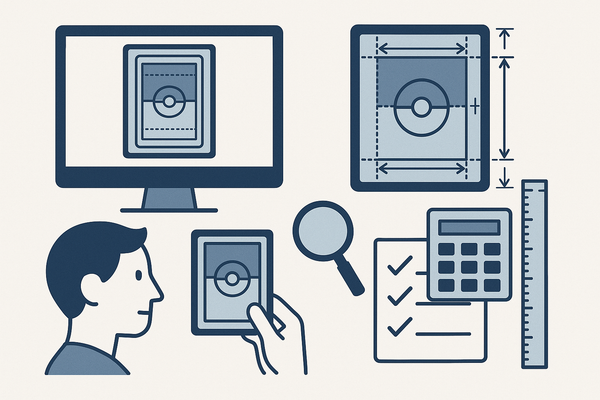
- Uploading or scanning front and back images
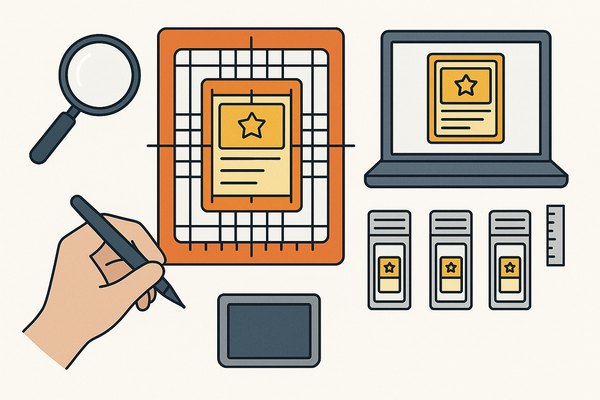
- Automatic border detection with manual guide adjustment
- Real-time centering ratios and combined front/back verdict
- Standards overlay for PSA, BGS, and CGC thresholds
For a manual measurement walkthrough, see our detailed guide.
Setting Up Your Environment
Installation & System Requirements
- Web-based: No install required—open any modern browser and navigate to the analyzer.
- Mobile (optional): Install “Card Centering Calculator” on Android or iOS for on-the-go scans.
- Hardware: A smartphone or computer with camera access and stable internet.
Access & Initial Configuration
- Grant camera/gallery permissions on mobile devices.
- On desktop or mobile browser, click “Upload Front” then “Upload Back.”
Step-by-Step Guide to Using the Analyzer
Preparing & Inputting Data
- Remove cards from sleeves/top loaders; use a flat, contrasting background.
- Capture or upload straight-on, well-lit photos of the front, then the back.
- Confirm AI border detection; drag guides manually if edges are misaligned.
Operational Workflow
- Select “Front” and upload/scan the front image.
- Adjust borders and note the left/right and top/bottom ratios.
- Switch to “Back,” repeat the process, and observe any limiting side.
- Review combined verdict showing which side caps the overall grade and predicted tiers for PSA, BGS, and CGC.
- Save or export results for record-keeping.
Troubleshooting & Common Issues
Even the best AI can struggle with edge cases. Typical problems and solutions:
- Patterned Borders: Use manual guide adjustments when AI borders are off.
- Inconsistent Lighting: Retake photos with direct overhead lighting and a flat surface.
- Glare from Sleeves: Remove all plastic sleeves before scanning to reduce reflections.
Advanced Features & Best Practices
- Multi-factor Grading: Combine centering with corner, edge, and surface AI assessments.
- Cross-Platform Comparison: Compare predicted outcomes across PSA, BGS, and CGC tolerances.
- Fine Manual Adjustments: Use sub-millimeter zoom for intricate border corrections.
Conclusion & Additional Resources
You now know what a card centering analyzer is, why centering matters, and how to run analyses from setup through advanced options. Consistent lighting, AI-assisted measurement, and manual fine-tuning will keep your readings accurate so you can submit only the best candidates.
Discover why web-based tools outperform manual methods in our in-depth comparison.
FAQ
How accurate is the Card Centering Analyzer?
With sub-millimeter precision and AI-assisted border detection, the analyzer reliably predicts centering ratios within grading thresholds.
Can I use this on multiple devices?
Yes. It’s web-based for desktops and available as a mobile app on Android and iOS for seamless cross-device use.
What if the AI misdetects the edges?
Simply drag the guides to the correct borders. Manual adjustments ensure you always get accurate measurements.